Quickstart
This quickstart gets you into the OM Core interface and builds a tiny model in a few minutes.
Start OM Core
Clone the repository and run the start script:
git clone https://github.com/cloudcell/om-core.git
cd om-core
./start.sh
You can also start a specific mode:
./start.sh --gui      # graphical interface
./start.sh --tui      # terminal interface
./start.sh --runtime  # headless engine
Get help
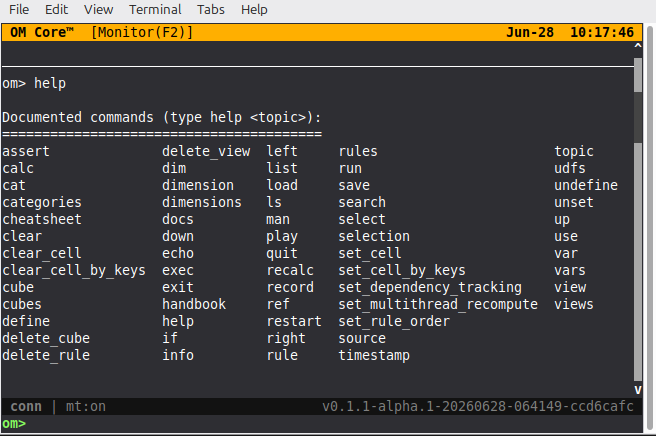
Once OM Core is running, the first command to try is help. It lists all documented commands and their topics.
om> help
The output looks like this in the TUI:
You can also ask for help on a specific command:
om> help rule
om> help calc
The interface
The first time you open the GUI, the workspace looks like this:
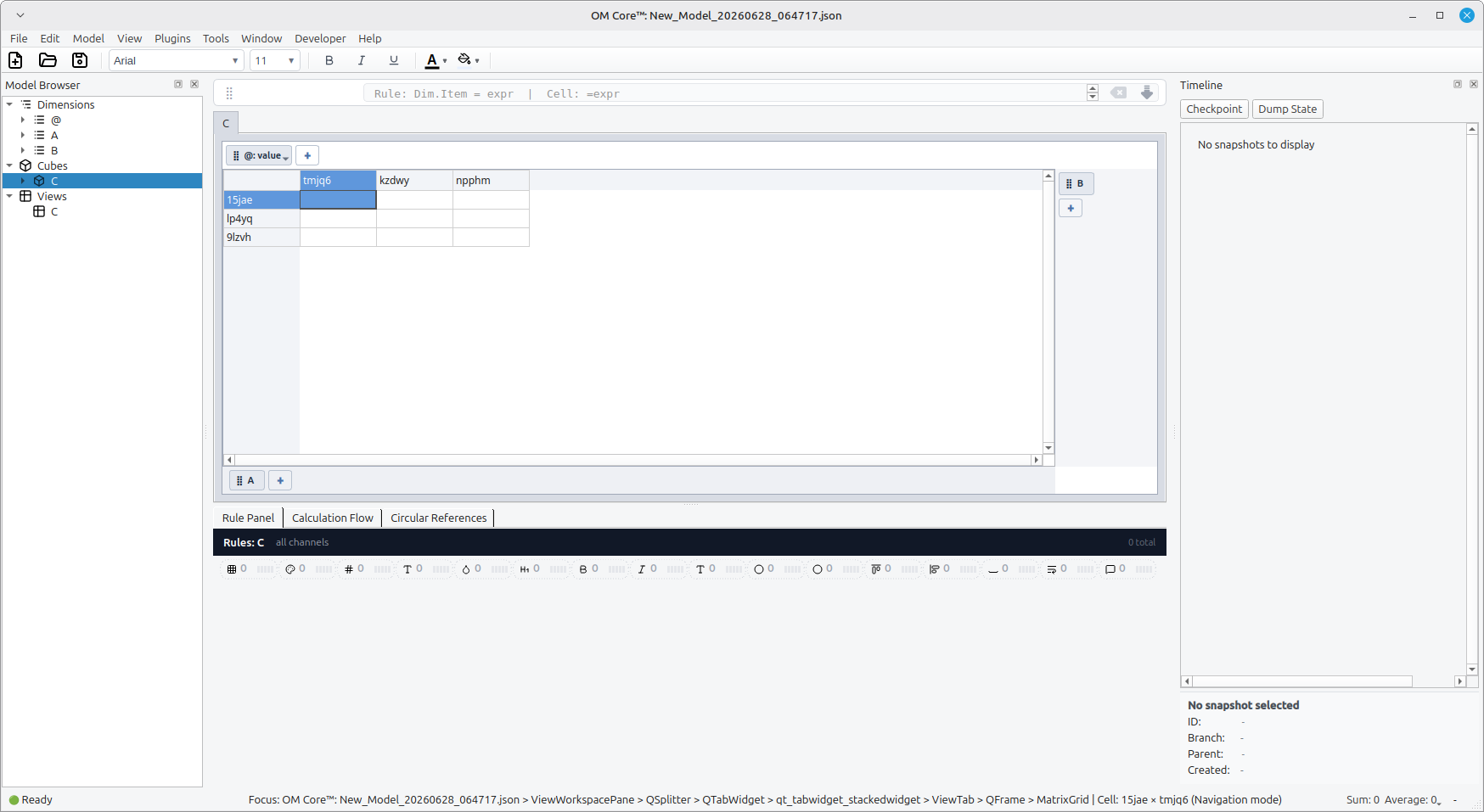
The main areas are:
- Model Browser (left) — lists dimensions, cubes, and views. This is the semantic structure of your model.
- Matrix Grid (center) — the data grid. Rows and columns are dimension items, not cells like in a spreadsheet.
- Rule Panel (bottom) — where you create and inspect rules. The tabs switch between rules, calculation flow, and circular reference diagnostics.
- Timeline (right) — checkpoint and dump state for debugging and experimental workflows.
Build your first model
Create a file named hello.openm:
# Dimensions
dim Month Jan Feb Mar

# Cube
cube Sales Month

# View
view SalesView = Sales::Month

# Rules
# This example writes each month explicitly for clarity.
# A real time series model is more compact with a recurrence rule.
rule Sales::Month.Jan = 100
rule Sales::Month.Feb = Sales::[Month.Jan] * 1.1
rule Sales::Month.Mar = Sales::[Month.Feb] * 1.1

# Calculate
calc
In the REPL or TUI, source the script:
om> source hello.openm
Inspect the result
- Open the SalesView in the Model Browser.
- The Matrix Grid shows the
Salescube with one row per month. - The Rule Panel shows the rules you defined.
- The Calculation Flow tab shows how values depend on each other.
What next
- Read the Scripting reference to write larger models.
- Read Rule syntax to understand the notation.
- Read Why not spreadsheets for the mental model behind OM Core.
- For the full modeling conventions and agent instructions, see SKILLS.md or download the raw file directly from GitHub.