Terminal UI (TUI)
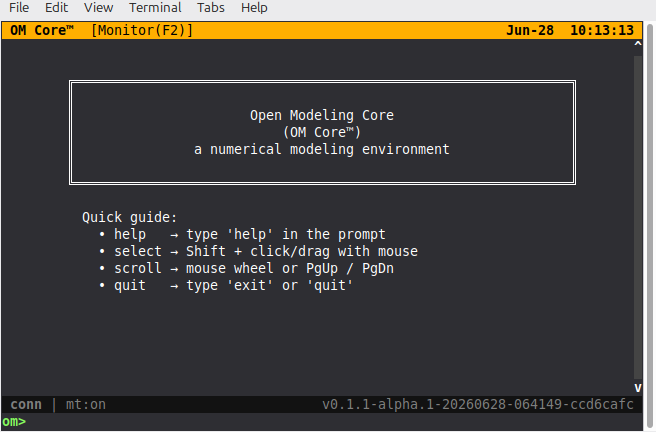
OM Core can run in a terminal UI mode. Start it with:
./start.sh --tui
The TUI provides the same core modeling capabilities as the GUI, but rendered in the terminal for keyboard-driven workflows, remote access, or low-bandwidth environments.
Layout
The TUI is divided into panes that mirror the GUI layout:
- Model Browser — a tree of dimensions, cubes, and views.
- Matrix view — the selected cube or view rendered as a grid.
- Rule panel — rules for the current selection or cube.
- Command/status line — a REPL-style input line at the bottom.
Navigation is keyboard-driven. Arrow keys move between panes and cells. The command line accepts the same .openm commands and REPL commands as the GUI.
First command: help
The first command to type in the TUI is help. It lists every documented command and available topics.
om> help
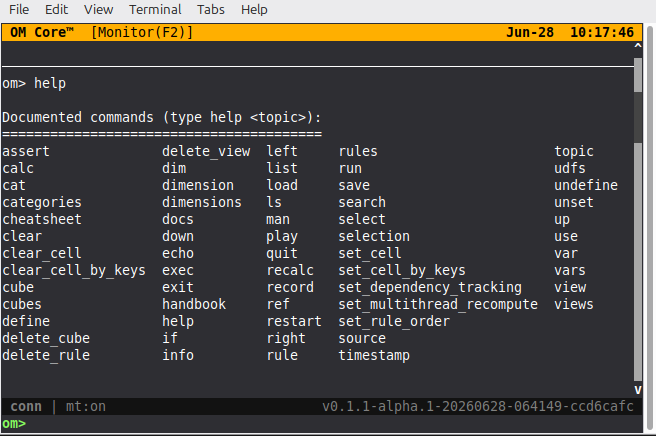
For help on a specific command:
om> help rule
om> help calc
Common commands
Once the TUI is open, type commands at the bottom line:
source scripts/depreciation_schedule.openm
view PnL
calc
save model.json
See the Scripting reference for the full command set.
Bus Monitor
The TUI includes a read-only Bus Monitor overlay (press F2) that shows the
live MessageBus trace. This is useful for debugging command flow, observing
command lifecycle events, and tracing correlations without leaving the terminal.
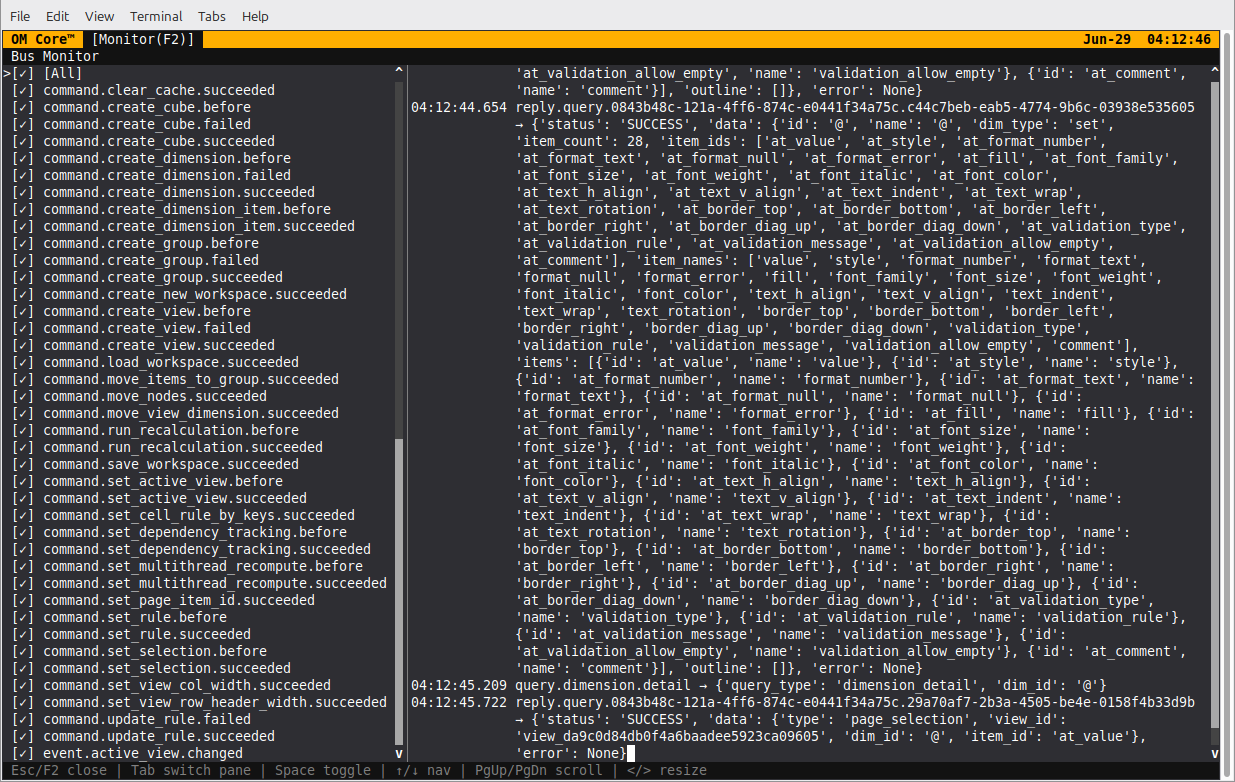
The monitor is split into a topic filter pane on the left and a formatted
message log on the right. Toggle topics with Space, navigate with the arrow keys
or j/k, and press Esc or F2 again to close the overlay and return to the
REPL prompt.
When to use the TUI
- You prefer keyboard-only interaction.
- You are working over SSH or a remote terminal.
- You want a lightweight alternative to the GUI.
- You are automating or recording a session.
- You need to inspect the bus trace while debugging rules or commands.